PDF Generation
TemplateTo generates high-quality PDF documents from your templates. This guide covers PDF-specific settings and features.
Overview
PDF output is ideal for:
- Printable documents (invoices, contracts, reports)
- Multi-page content with page breaks
- Documents requiring headers and footers
- Password-protected files
- Official documents requiring consistent formatting
PDF Settings
Access PDF settings through the Template Settings panel in the editor.

Paper Size
Choose from standard sizes or define custom dimensions:
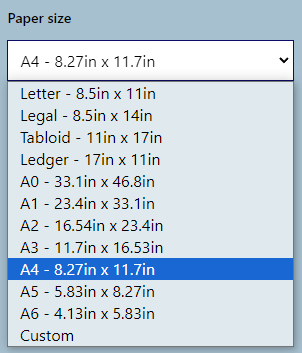
Standard sizes:
- A4 (210mm x 297mm) - Default
- Letter (8.5" x 11")
- Legal (8.5" x 14")
- A3, A5, and more
Custom size: Select "Custom" and enter dimensions in millimeters.
Orientation
- Portrait (default) - Taller than wide
- Landscape - Wider than tall
Print Background
Enable to include background colors and images in the PDF. This is enabled by default.
Margins
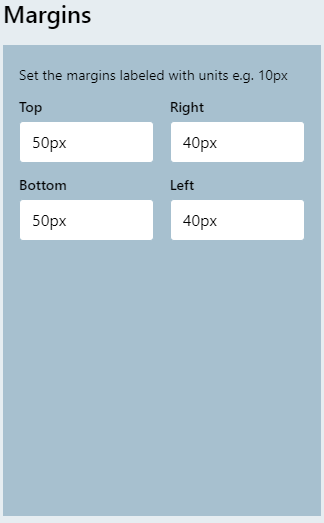
Set margins for top, bottom, left, and right edges.
Note
Headers and footers render within the margins. Ensure adequate margin space when using headers/footers.
Headers and Footers
Add consistent headers and footers to every page of your document.
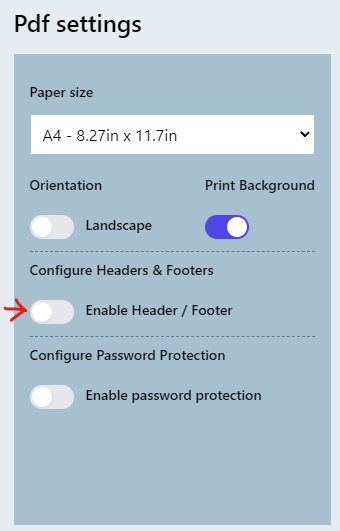
Enabling Headers/Footers
- Open Template Settings
- Toggle "Display Header / Footer"
- Select content blocks for header and/or footer
Using Content Blocks
Headers and footers use Content Blocks - reusable pieces of content you can share across templates.
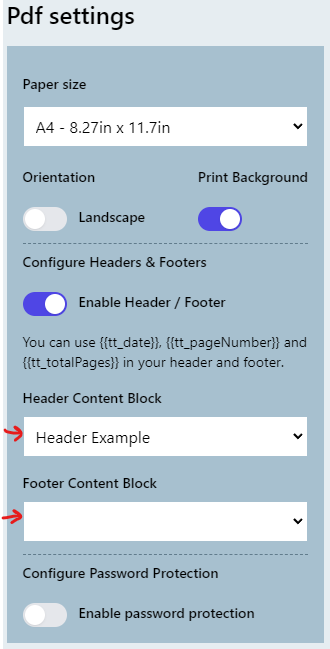
Create content blocks at: Content Block Manager
Page Numbers
Use Liquid variables in your header/footer content blocks:
{{page}}- Current page number{{pages}}- Total page count
Example footer: Page {{page}} of {{pages}}
Cover Page
Apply different settings to the first page of your document.
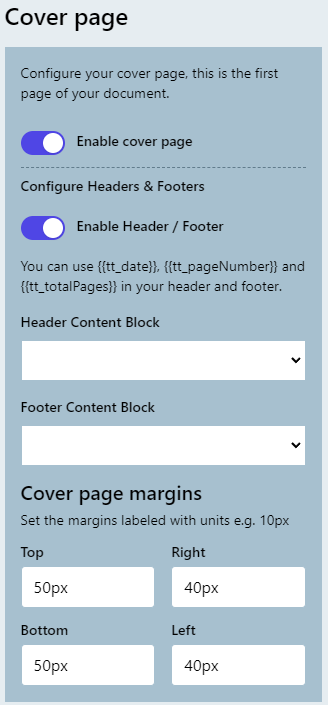
Cover page options let you:
- Use different margins for page 1
- Hide headers/footers on the cover
- Apply different orientation
Password Protection
Secure your PDFs with password protection and permission controls.
Enabling Protection
- Open Template Settings
- Toggle "Password Protection"
- Configure options
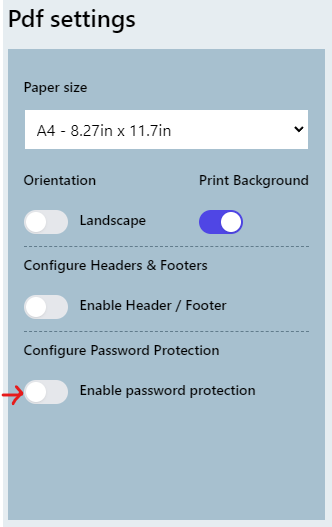
Protection Options
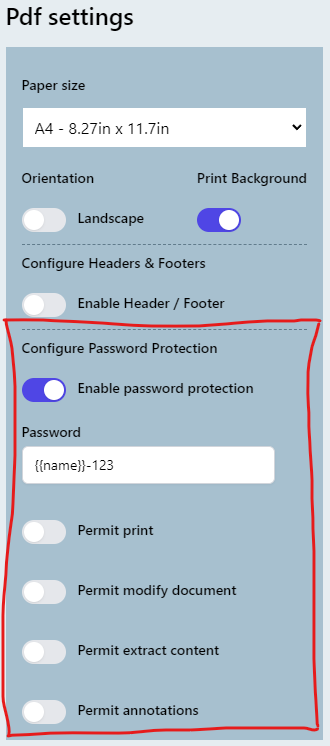
| Option | Description |
|---|---|
| Password | Password to open the document. Supports variables like {{customerPassword}} |
| Permit Print | Allow printing |
| Permit Modify | Allow editing document content |
| Permit Extract | Allow copying text and images |
| Permit Annotations | Allow adding comments and annotations |
Dynamic Passwords
The password field accepts template variables. Use {{password}} and pass a unique password in your API request for per-document encryption.
Page Breaks
Control where new pages begin in your document.
Page Break Element
Add a Page Break element to force content onto a new page:

- The Page Break element fills remaining space on the current page
- Content after the break appears on the next page
Automatic Page Breaks
TemplateTo calculates estimated page breaks automatically. The editor shows dotted lines indicating where breaks will occur.
To disable this calculation (useful for templates with complex layouts), toggle "Disable PageBreak Calculation" in Template Settings.
API Integration
Generate PDF from Template
curl -X POST "https://api.templateto.com/render/pdf/{templateId}" \
  -H "X-Api-Key: your-api-key" \
  -H "Content-Type: application/json" \
  -d '{"customerName": "Acme Corp", "total": 150.00}'
Generate PDF from Raw HTML
curl -X POST "https://api.templateto.com/render/pdf/fromhtml" \
  -H "X-Api-Key: your-api-key" \
  -H "Content-Type: application/json" \
  -d '{"base64HtmlString": "PGh0bWw+PGJvZHk+SGVsbG8gV29ybGQ8L2JvZHk+PC9odG1sPg=="}'
Base64 Encoding
Raw HTML must be Base64 encoded. In JavaScript: btoa(htmlString). In Python: base64.b64encode(html_string.encode()).decode().
Response Types
- File download -
POST /render/pdf/{templateId}returns the PDF directly - Base64 encoded -
POST /render/pdf/{templateId}/as-byte-arrayreturns a Base64 string
For complete API documentation, see the REST API Reference.
Best Practices
- Test with realistic data - Use actual content lengths to verify page breaks
- Set appropriate margins - Leave room for headers/footers and binding
- Use content blocks - Share headers/footers across related templates
- Consider print settings - Enable "Print Background" if you use background colors
- Validate passwords - Test password-protected PDFs open correctly